
Appearance & Customization
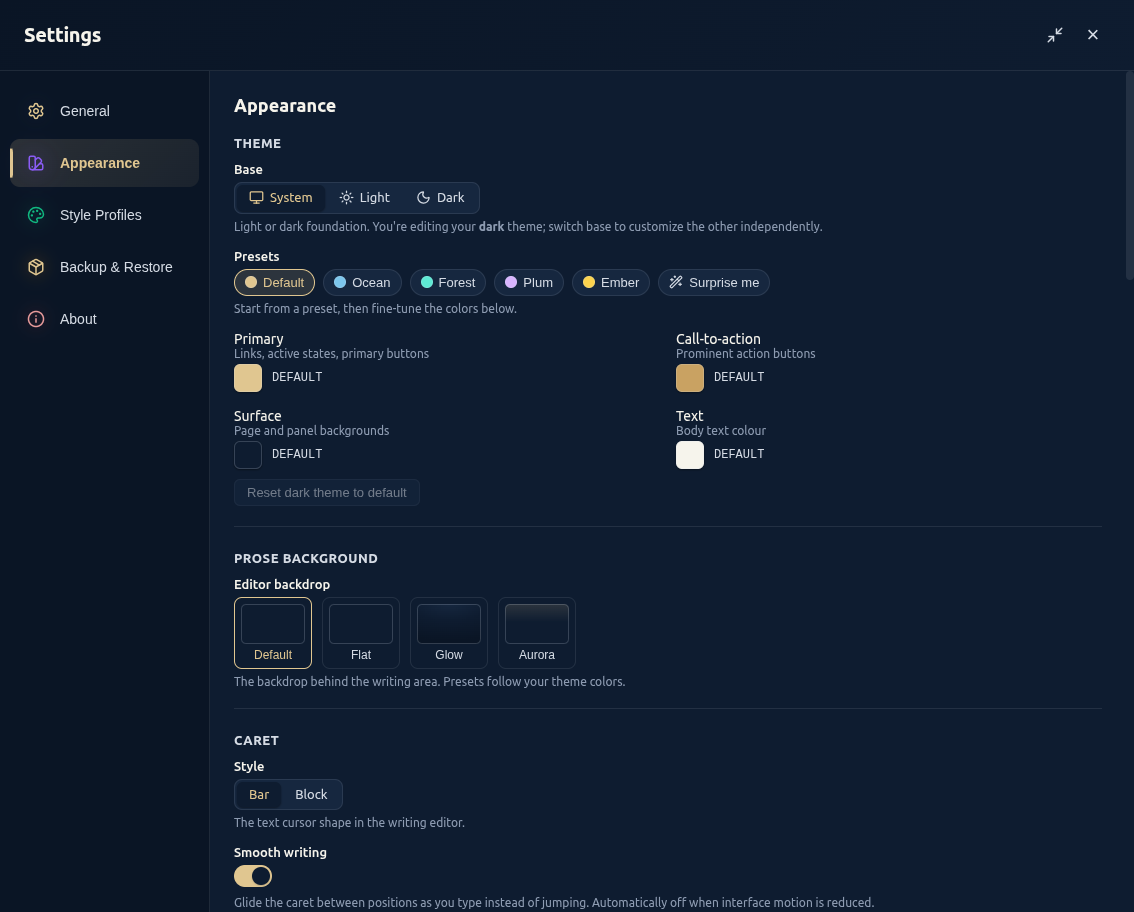
DocuShark is built to bend around how you like to work. Almost every visual choice — colours, spacing, motion, even the shape of your text cursor — lives in one place: Settings → Appearance. This page is a tour of what you can change.
Open it from the Settings button in the toolbar, then the Appearance tab.
Appearance vs. Styling
Appearance changes the app around your work — themes, spacing, the editor. To style the shapes in a diagram (fills, strokes, fonts, reusable style profiles), see Styling & Themes.
Theme
The theme builder is the centrepiece. You don't just pick light or dark — you can build your own.
- Base — System, Light, or Dark. System follows your device. You edit Light and Dark independently, so your light theme and dark theme can each look exactly how you want; switch base to customise the other.
- Presets — start from a ready-made colour set, then tweak. Feeling adventurous? Hit Surprise me to generate a random, still-legible theme.
- Fine-tune the colours — set your Primary, CTA, Surface, and Text colours. DocuShark checks contrast as you go and shows a gentle Low contrast warning if a choice would be hard to read, so your custom theme always stays legible.
- Reset the current base back to its default any time.
Your diagrams keep their own colours — the theme changes the app's surfaces and chrome, not the shapes you've drawn, so a diagram looks the same in light or dark.
Prose background
Choose the backdrop behind the writing area from a set of presets that follow your theme colours — from a clean flat surface to something with a little more warmth.
Caret
Tune the text cursor in the writing editor:
- Style — a thin Bar or a Block over the character.
- Smooth writing — glide the caret between positions as you type instead of jumping (automatically off when motion is reduced).
- Colour — defaults to your theme's text colour; override it if you like.
Spelling
Pick how spellcheck works while you write:
- Custom — DocuShark's own dictionary, with Add to dictionary.
- System — your browser or OS spellchecker.
- Off — no spellchecking.
Tables
Toggle rounded tables on for softer corners in the writing editor, or off for a square, grid-style look.
Motion
Set interface animations to Full, Reduced, or System (which follows your device's accessibility setting). Reduced motion also quiets related effects like the smooth caret.
Density
Tighten or loosen spacing across the whole app:
- Compact — fit more on screen.
- Normal — the default.
- Spacious — roomier spacing and larger targets.
Interface size
A slider that scales the entire interface up or down — handy on very large or very small displays. The canvas and your diagrams are not affected, so zooming the UI never changes your drawing.
Canvas grid
Set the grid opacity — how visible the canvas grid is, from fully visible down to hidden (0%).
Layout
The Layout section is embedded right here in Appearance — it's the panel arrangement editor for each layout mode. Dock the document and properties panels where you want them, per layout.
Window title bar (desktop)
On the desktop app, you can replace your operating system's window title bar with DocuShark's own for a more unified look. It's off by default, and the app restarts to apply. (This option only appears on the desktop app.)
Mobile preview
An experimental, early-access layout for small touch screens. Turn it on to try DocuShark's mobile layer; it only takes effect on a touch device with a small screen. See Mobile Preview.
Reset
At the bottom, Reset appearance to defaults returns theme, motion, density, interface size, and layout customisation to their original settings in one click.
See also
- Styling & Themes — style the shapes in a diagram and save reusable style profiles.
- Layout Modes — reshape the workspace for writing or diagramming.
- Settings — everything else under Settings.